Group Navigation Bar Tool
 The Group Navigation Bar lists facilities in drop-down menus, based on a group navigation hierarchy. The group hierarchy and the Group Navigation Bar’s configuration determine the number of drop-down menus the tool includes. The drop-down menus are called "levels" in the Group Navigation Bar Tool and in the online help.
You can manually configure the drop-down levels or you can choose to have them auto-configured, by setting the AutoConfigureLevels property in the OCXProperties dialog box. For details, see Configuring the Root Node.
|
Group Nav Bar Control |
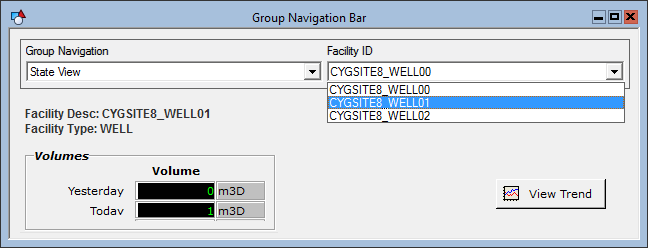
You usually use the Group Navigation Bar to set the [Facility] property of TheView for a templated screen. Set the [AutoRestart] property (on the Normal page on the Property Sheet) to 1 - Yes. [AutoRestart] will restart TheView and sets its [Facility] property to match the facility selected in the Group Navigation Bar. This affects the tools on TheView.
You can also use the Group Navigation Bar with a Group Grid Tool. The Group Navigation Bar selects the navigation view to set the Facility ID for each row in the grid. In this case, set [AutoRestart] to 0 - No, since clicking on a row in a grid can set the [Facility] property of TheView.
Note: The Facility Navigation Bar Tool is similar to the Group Navigation Bar; however, the Facility Navigation Bar is based on facility attributes instead of a navigation hierarchy. The advantage to using the Group Navigation Bar is that it offers faster performance, as the list of facilities is defined in the navigation hierarchy.
To keep Group Navigation Bars synchronized from screen to screen, use the PersistName properties.
To learn about scripting and the GroupNavBar Object, see CxGrpNavBar.
More:


